
Introduction
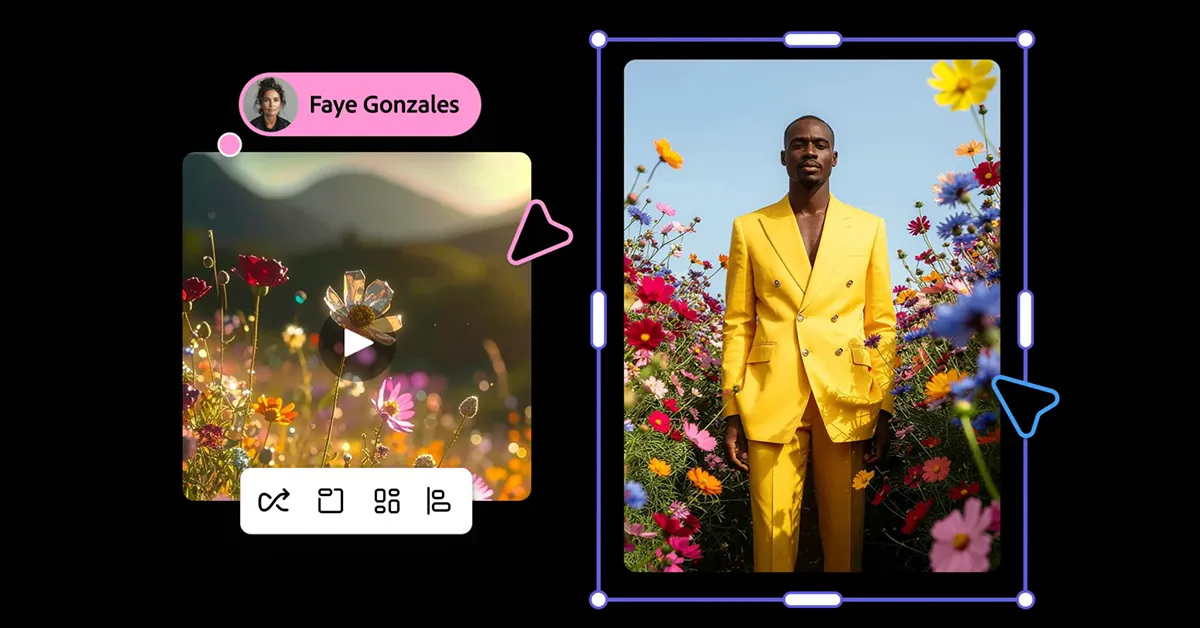
Adobe Firefly is one of the most powerful creative tools for generating AI-based images and videos. Whether you’re an artist, marketer, or content creator, Firefly allows you to bring your imagination to life using simple text prompts.
In this guide, we’ll walk you through a simple yet effective workflow—starting with generating an AI image and then turning it into a short, looping video.
Step 1: Getting Started with Firefly
To begin, open Adobe Firefly and click on New at the top of the dashboard. You’ll be presented with two options—Create a File or Generate a File.
Create a File: Upload your own photo or artwork and enhance it with generative AI features such as background editing or object replacement.
Generate a File: Create a brand-new image from scratch using an AI model based on your text prompt.
For this example, choose Image under the Generate section.
Step 2: Setting Up Your Image Generation
Once the new screen opens, you’ll notice a prompt field similar to a chatbot interface. This is where the magic begins.
At the top of the sidebar, you can select your AI model and aspect ratio (square, portrait, landscape, etc.).
You also have the option to upload a reference image, which helps the AI understand your desired visual style or subject.
Before generating, you’ll see how many credits each image creation costs, along with an optional prompt suggestion toggle that helps refine your idea.
When ready, enter your prompt and click Generate.
Step 3: Refining and Editing Your Image
After your image appears, you can start refining it to perfection.
If you’re not satisfied with the first result, click the three dots next to the image and select Generate More to view alternate options.
If one version is close but needs slight improvements, hover over it, click Edit, and then choose Use as Reference Image. This will feed your chosen image back into the model to refine it further.
You can also use Edit Image to chat directly with Firefly’s AI and make specific changes such as adjusting lighting, composition, or background elements.
Firefly keeps track of all your generated images, so you can revisit your generation history anytime from the main screen.
Step 4: Turning Your Image into a Looping Video
Once you’re happy with your final image, it’s time to take things further.
Go back to the main Firefly dashboard by clicking the Firefly icon in the upper-left corner. Then, click New again and choose Video.
This feature lets you transform your still image into a short, looping video clip. You can select motion effects, choose how elements animate, and even fine-tune the duration and looping style.
Conclusion
Adobe Firefly makes it incredibly easy to move from concept to creation—no design experience required. By following these steps, you can generate stunning AI-powered images and bring them to life as looping videos that captivate your audience.
Whether for social media, marketing campaigns, or personal projects, Firefly empowers you to explore the next frontier of digital creativity.
For more articles like this visit Trenzest.